 · CEO, D. Gira
How to open an AI-generated song inside Ableton Live
How to open an AI-generated song inside Ableton Live
Anyone who produces music knows the moment: the generated track sounds good, but it's an MP3. One solid block. You can't pull the vocal down two decibels, you can't redo the chorus, you can't swap the drums. Either you take it as it is, or you start over.
It's the limit shared by almost every AI music generator. They hand you a result, not a starting point.
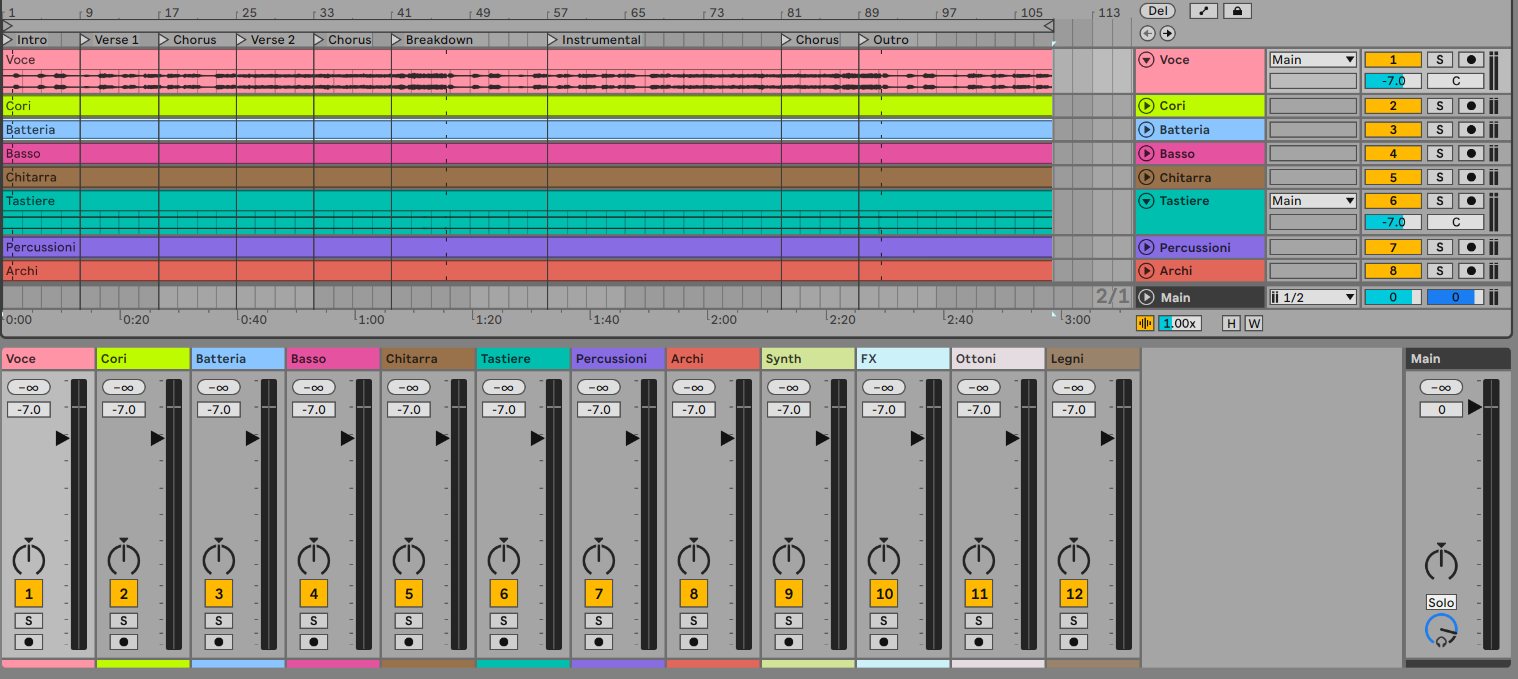
Music Studio Pro does something different: it exports a real Ableton Live project, with the .als extension. You open it and the session is already laid out, as if someone had prepared it for you.
What's in the project
When you export, you don't download a folder of audio files to sort out by hand. You download a complete session:
- 12 separate stems on their own tracks: vocals, backing vocals, drums, bass, guitar, keys, percussion, strings, synth, FX, brass and woodwinds.
- Every track named and coloured. Not "Audio 1", "Audio 2", "Audio 3": you read "Drums" and you see its colour, like a session prepared by an engineer.
- Section markers in the right place: Intro, Verse, Chorus, Breakdown, Instrumental, Outro. You know where you are without listening through the whole thing.
- The mixer already set up, with starting levels in place.
Along with the project you also get the MP3, the WAV, a technical sheet in PDF and the chords in MIDI.
Why separate stems change everything
A stem is one part of the track, isolated from the rest. With twelve stems on the table you can do what an MP3 makes impossible:
Redo the mix. Vocal sitting too far back? Bring it up. Kick burying the bass? Put an EQ on that track alone. With a single file you can't touch one thing without touching everything.
Replace a part. You like all of it except the drums: mute them and play your own over the top. The rest of the track stays exactly as it was.
Redo just one section. The chorus doesn't convince you: regenerate it and drop it back in, without redoing the verses.
Take it elsewhere. Stems are ordinary audio files: if you work in Logic, FL Studio or Reaper, you import them there. The .als project is the extra convenience for Ableton users, not a cage.
Step by step
- Generate the track on Music Studio Pro by describing what you want: genre, mood, length, artist reference.
- Pick the take you prefer from the ones produced. Every generation saves more than one, so you can compare them.
- Hit export. The system separates the tracks, builds the project and hands you the file.
- Open the
.alswith a double click. Ableton Live starts up with the session ready. - Carry on working from where the AI stopped.
Do you need Ableton?
No. The .als project opens in Ableton Live, but the stems are standard audio files: they work in any recording software. If you don't use Ableton, all you lose is the convenience of a pre-built session — the tracks are still yours and usable anywhere.
The .als format is Ableton Live's native one. The project targets Live 12, the current version.
What it costs
Full 12-track stem export is included twice a month even on the free plan, with no credit card. That's enough to work out whether the result is actually useful to you before spending anything.
On paid plans, export draws from the monthly token pool along with everything else — generation, targeted editing, overdubbing, WAV export — and each action costs in proportion to what it really costs to produce. The Pro plan starts at 600 tokens a month, Studio at 1,250.
In short
The difference between a music generator and a production tool comes down to this: the first hands you a file, the second hands you a session to work on.
If you're a producer, a musician or a content creator, and you've stopped more than once in front of an MP3 you couldn't change, this is the piece you were missing.