 · CEO, D. Gira
How to calculate LUFS for Spotify (and why -14 is not a target)
Anyone releasing on Spotify eventually asks: how many LUFS should I master to? The short answer is that Spotify normalises playback around -14 integrated LUFS. The useful answer is understanding what that number means, how it is calculated and what happens to your track above or below it.
What LUFS are
LUFS (Loudness Units relative to Full Scale) measure perceived loudness, not electrical level. Two tracks with the same peak can sound very different in loudness: LUFS account for how the ear weights frequencies.
The value that matters to platforms is integrated LUFS: the average perceived loudness over the whole track.
How it is calculated (ITU-R BS.1770)
- Two-stage K filter: a high-frequency boost and a low-frequency cut that mimic the ear.
- 400 ms blocks, 75% overlapped: energy is computed on each one.
- Absolute gate at -70 LUFS: near-silent blocks are discarded.
- Relative gate at -10 LU below the average: much quieter passages must not drag the result down.
- The average of the remaining blocks is the integrated LUFS.
What Spotify does with your master
- Louder than -14 LUFS: Spotify turns it down. It will not sound louder than other tracks, and if you crushed it with a limiter you lost dynamics for nothing.
- Quieter than -14 LUFS: Spotify turns it up, as far as peak headroom allows.
So -14 is not a number to chase at all costs: it is where the platform brings everyone. What matters is getting there with a master that breathes.
How MakerMusic measures it
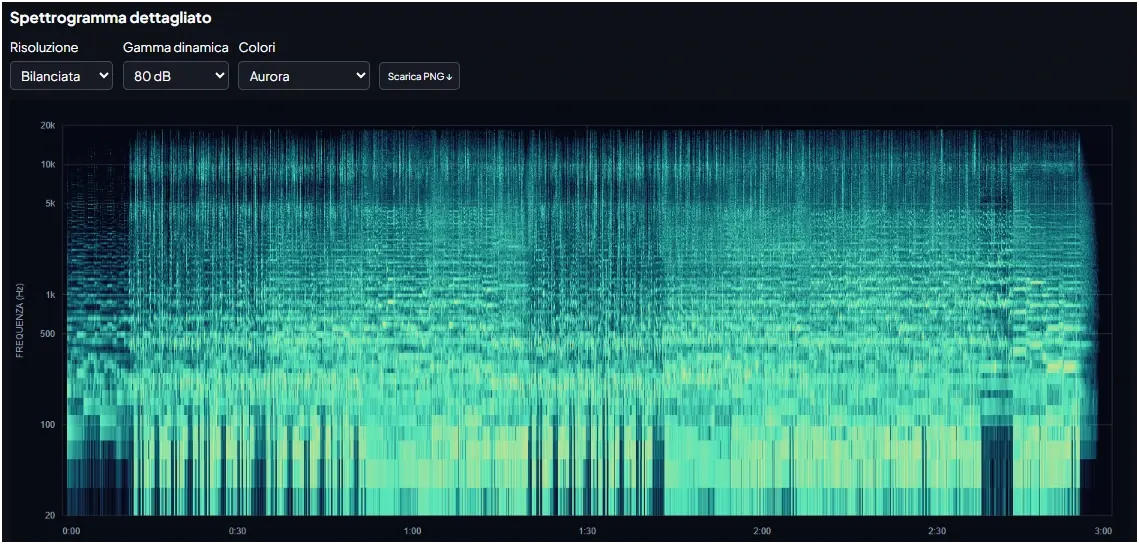
In the Analyze your song lab you upload the track and integrated LUFS is calculated in the browser with exactly this procedure: K filter, 400 ms blocks, both gates. Next to it you see the platform reference, true peak and loudness range, so you can tell at a glance whether the master is over-compressed or too quiet.
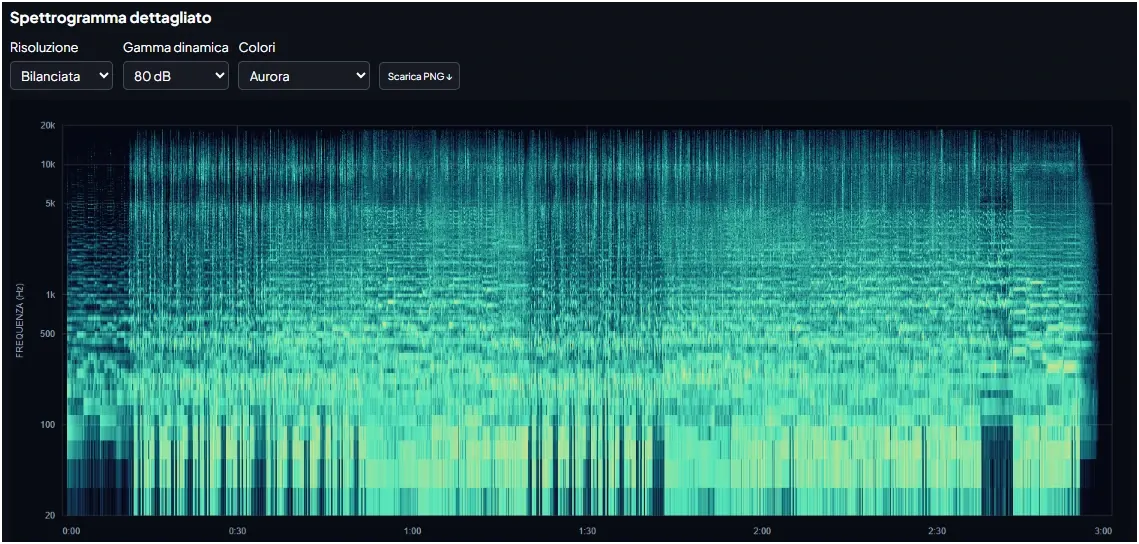
The same calculation appears on the technical sheet of every track created in the Studio.
In short
- Spotify normalises around -14 integrated LUFS.
- Integrated LUFS uses a K filter, 400 ms blocks and two gates (ITU-R BS.1770).
- A louder master gets turned down: preserve the dynamics.
- In MakerMusic you measure it by uploading the track to Analyze your song.